Initial setup
1. Configure the rs-container
The entire lab is built from code hosted in this repo. To run the deployments you need to configure your personal information and credentials.
Note
You will be asked to configure sensitive parameters like AWS credentials. those are used to deploy resources on your account. those cloud resources will appear on your cloud account
it is your responsibility to use it responsibly and shut down the instances when done.
1.1 Configure credentials and personal information
The following steps are required only in the first time you run the container on a host, this information persists on the host and will be available for you on any subsequent runs.
1.1.1 Create an AWS credentials file
- create an AWS credentials file by typing:
mkdir -p /home/snops/host_volume/aws
vi /home/snops/host_volume/aws/credentials
- Copy and paste the following (and change to your keys):
[default]
aws_access_key_id = CHANGE_TO_ACCESS_KEY
aws_secret_access_key = CHANGE_TO_SECRET
1.1.2 Create a personal SSH key
The SSH key will be used when creating EC2 instances. we will store them in the host-volume so they will persist any container restart:
mkdir -p /home/snops/host_volume/sshkeys
ssh-keygen -f /home/snops/host_volume/sshkeys/id_rsa -t rsa -N ''
1.1.4 add credentials
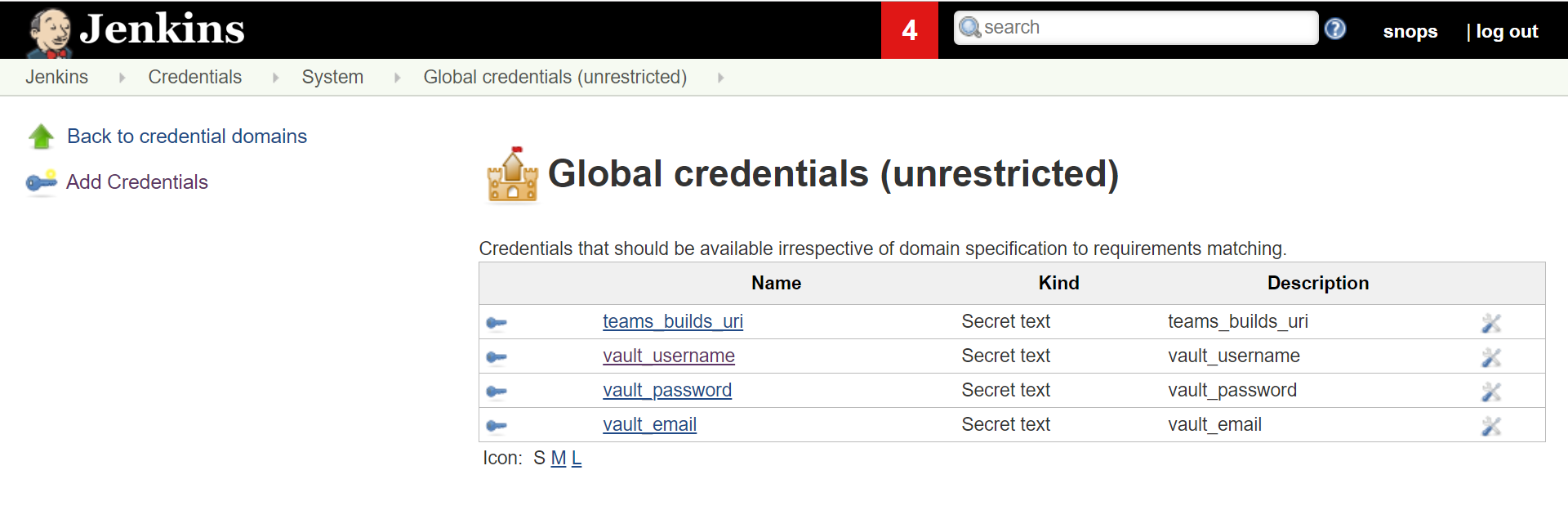
You will now configure some paramaters as ‘jenkins credentials’, those paramaters are used when deploying the solutions.
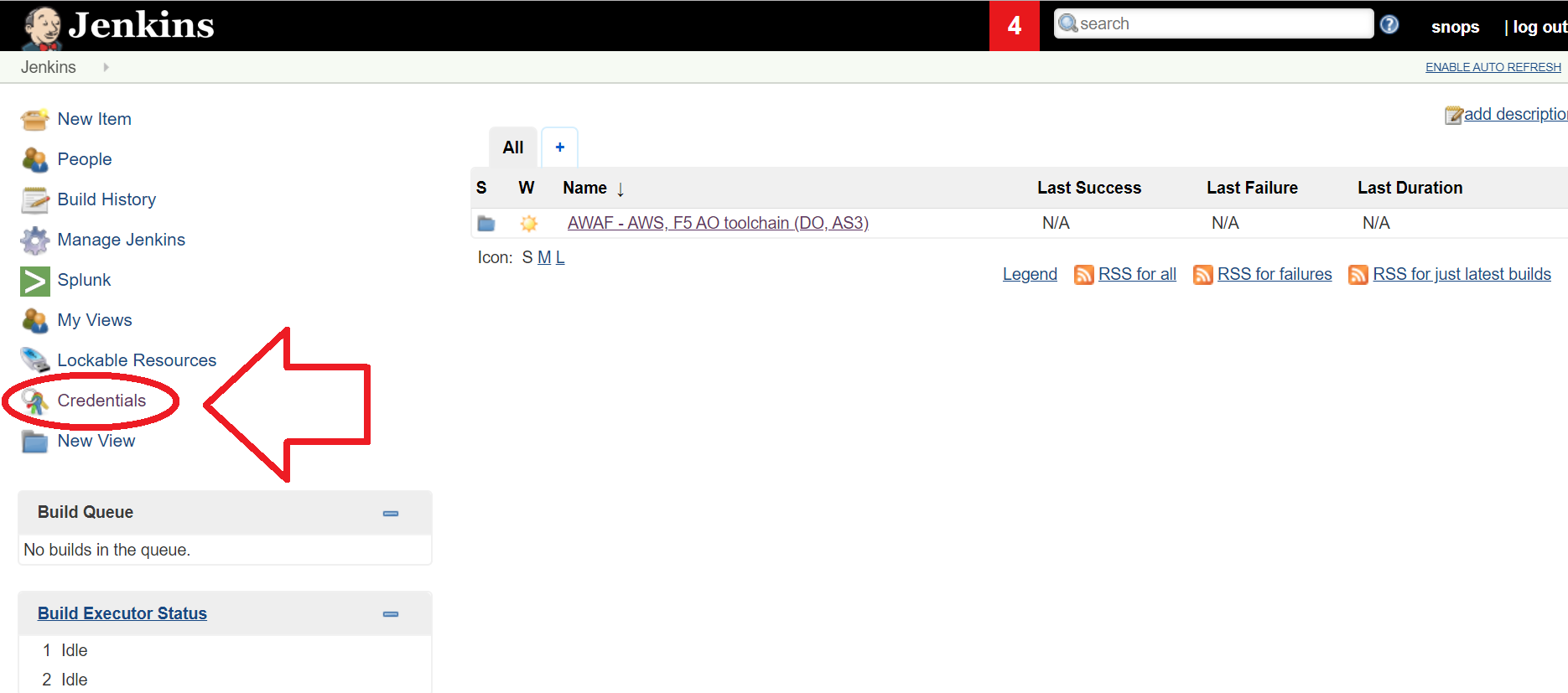
In jenkins, Navigate to ‘credentilas’ on the left side
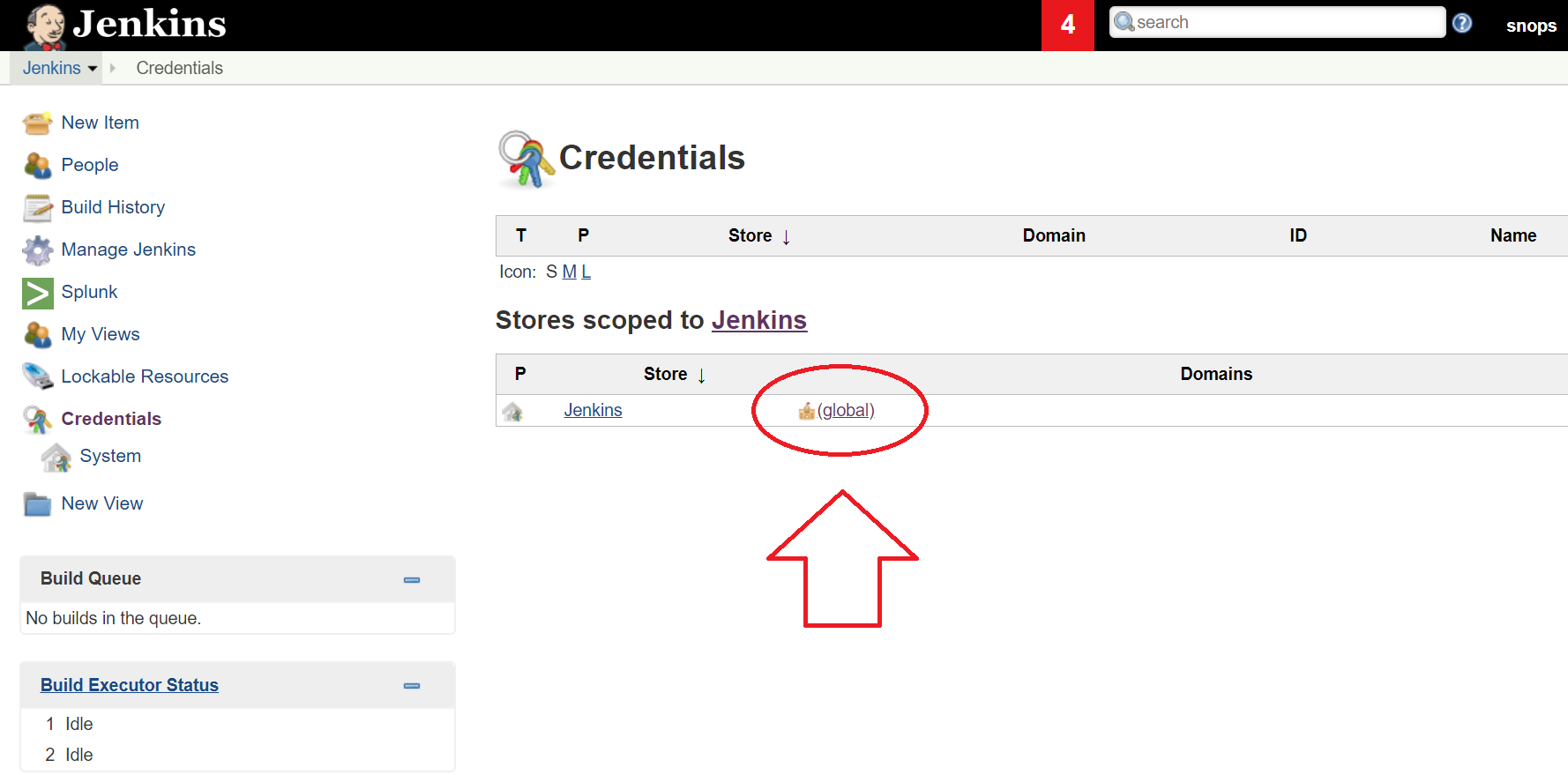
Click on ‘global’
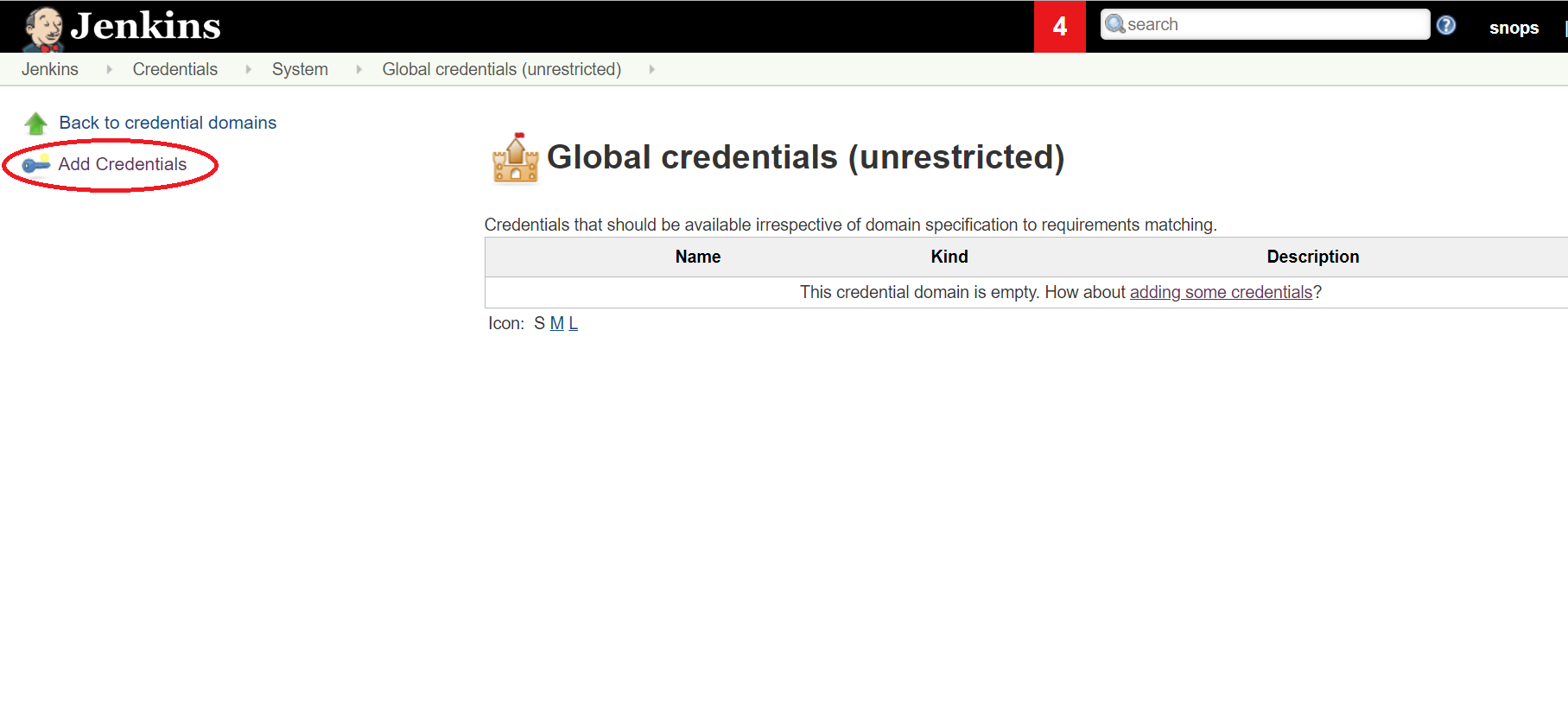
Click on ‘Add Credentials’ on the left side
Change the ‘kind’ to ‘secret text’
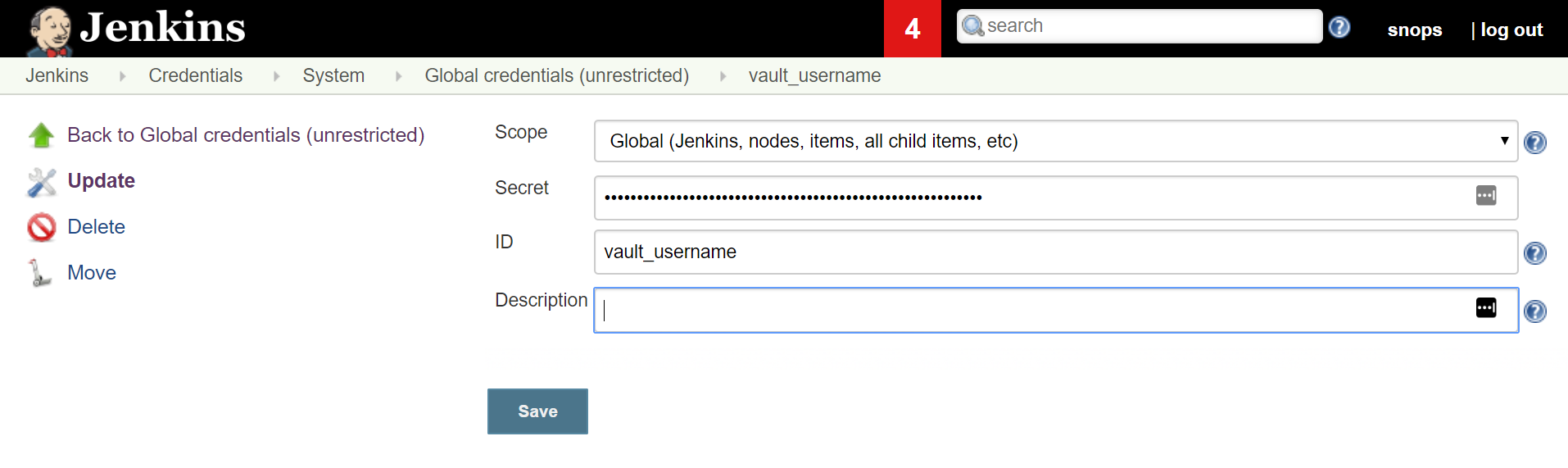
- Add the following credentials:
- Secret: ‘USERNAME’ , ID: ‘vault_username’
- USERNAME: used as the username for instances that you launch. also used to tag instances. example johnw. please follow BIGIP password complexity guide https://techdocs.f5.com/kb/en-us/products/big-ip_ltm/manuals/product/big-ip-system-secure-password-policy-14-0-0/01.html
- Add the following credentials:
- Secret: ‘EMAIL’ , ID: ‘vault_email’
- EMAIL: your EMAIL address
- Add the following credentials:
- Secret: ‘YOUR_SECRET_PASSWORD’ , ID: ‘vault_password’
- USERNAME: used as the password for instances that you launch. needs to be a secure password.
- Add the following credentials:
- Secret: ‘TEAMS_WEBHOOK’ , ID: ‘teams_builds_uri’
TEAMS_WEBHOOK: webhook from your teams channel.
open teams, click on the channel options (3 points next to the channel name)
configure an Incoming Webhook
1.2 Run the container startup script
- Run the container startup script with the following command:
- The script will download the repos again and copy files from the host volume you just populated to the relevant directories
/snopsboot/start
2. Start a solution
List of available solutions: